How to Download Videos Using VidMate – Complete Step-by-Step Guide


Asif Mohammad Sovon
Asif Mohammad Sovon, IT Assistant at Bangladesh Air Force and Fileion tech writer, simplifies tech t...
Step-by-Step Guide: How to Download Videos Using VidMate
4. Customization and Optimization
Finalizing and Managing Downloads
Quick Tips for Beginners and Advanced Users
Is VidMate safe to download and use on my Android device?
Can I download YouTube videos in 4K quality using VidMate?
Why is VidMate not available on the Google Play Store?
Does VidMate work on iPhone or iPad devices?
How much storage space do I need for VidMate and downloaded videos?
Watching your favorite videos offline is a game-changer. No buffering. No data limits. Just smooth playback anywhere, anytime.
That frustration when your favorite content disappears from platforms or when you run out of data while traveling is exactly why video downloaders exist. VidMate solves these problems by letting you save videos, music, and movies directly to your Android device. Whether you want to build a personal library of tutorials, entertainment clips, or music videos, this tool makes offline access effortless.
This guide walks you through everything about VidMate. You'll learn what it is, how to use it properly, which features matter most, and how to avoid common mistakes that slow down your downloads.
Let's dive into the basics before moving to the hands-on steps.
What is VidMate?
VidMate is a video and music downloader application designed for Android devices. It enables users to save content from over 1000 websites and platforms directly to their phones or tablets.
Students use it to download educational videos for offline study. Content creators grab reference materials without internet dependency. Entertainment enthusiasts build collections of movies and shows. Professionals save training videos and webinars for repeated viewing.
The app pulls content from YouTube, Facebook, Instagram, TikTok, Dailymotion, Vimeo, and countless other sources. It converts videos to multiple formats and resolutions, from basic 144p up to crystal-clear 4K quality. You can also extract audio from videos and save it as MP3 files for playback.
Key Features
Multi-Platform Support: Download from 1000+ websites, including YouTube, Facebook, Instagram, TikTok, and other major platforms.
Flexible Quality Options: Choose resolutions from 144p to 4K Ultra HD. Save videos in MP4, AVI, MKV formats or extract audio as MP3 files.
Fast and Convenient: Download speeds reach up to 15 MB/s. Queue multiple videos, run downloads in the background, and play content directly within the built-in media player.
Step-by-Step Guide: How to Download Videos Using VidMate
1. Getting Started
Before downloading videos, you need to install VidMate on your Android device. The app is not available on the Google Play Store due to platform policies regarding video downloaders.
Visit the official VidMate website or a trusted APK distribution platform, such as Fileion. Download the latest APK file to your device. Before installation, enable "Unknown Sources" in your device settings. Navigate to Settings, then Security or Privacy, and toggle on "Install from Unknown Sources" or "Allow from this source."
2. Initial Setup
Launch VidMate for the first time. The home screen displays trending videos, categories, and platform shortcuts. Take a moment to explore the interface layout.
The top section features a search bar for finding specific content. Below that, you'll see quick access buttons to popular platforms like YouTube, Facebook, and Instagram.
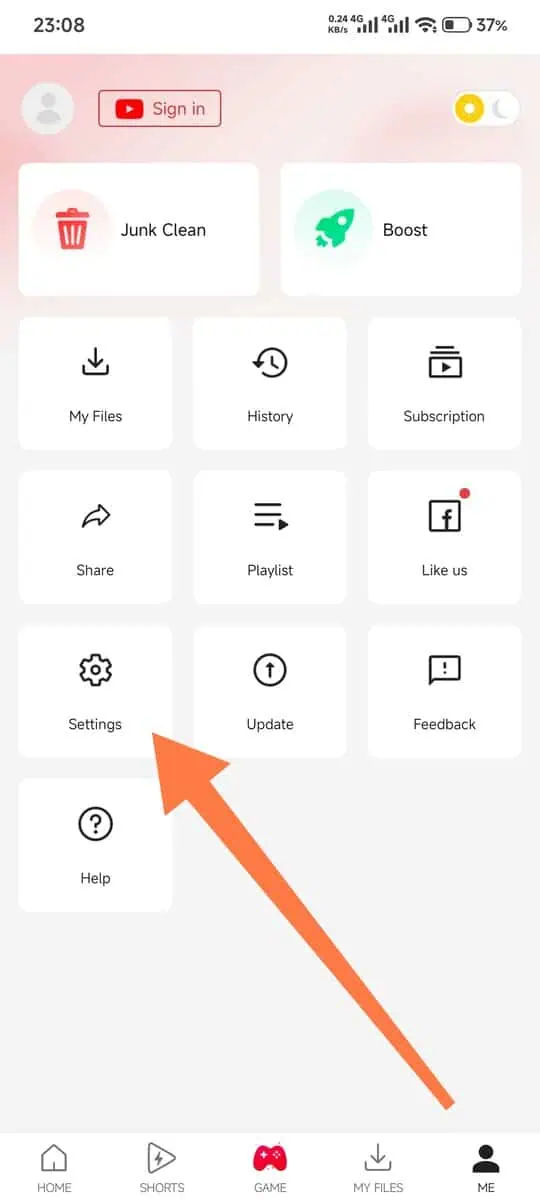
Open the settings menu by tapping the three-line icon. Review available options to customize your experience. Set your preferred download location, either internal storage or SD card. Choose the default video quality to save time on future downloads. Enable or disable notifications based on your preference.
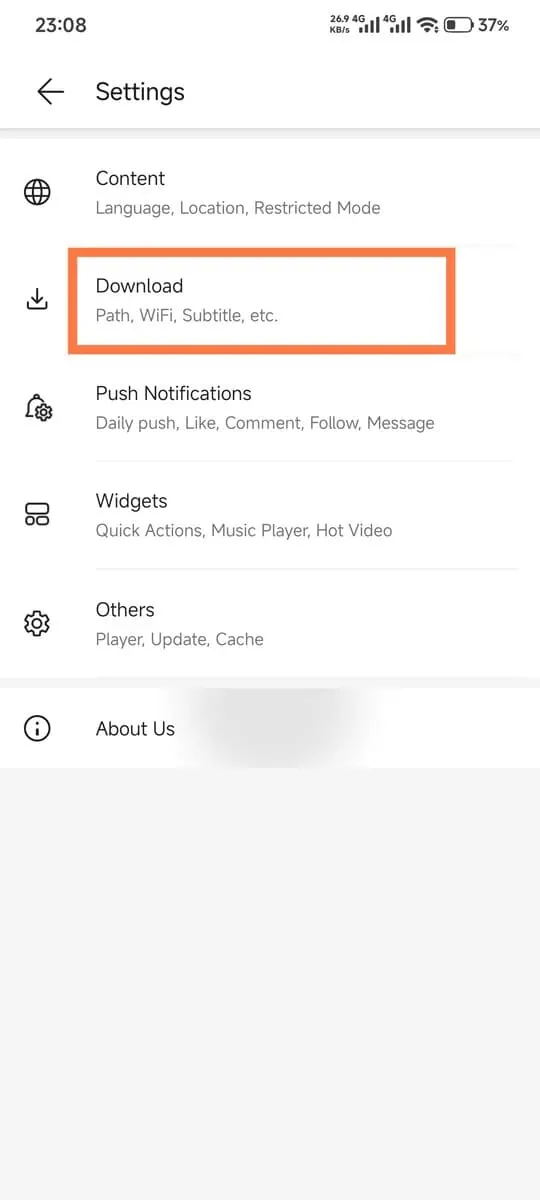
3. Downloading Videos
Navigate to the platform where your desired video exists. You can use the built-in browser shortcuts or the search function. For YouTube videos, tap the YouTube icon from the home screen. For other platforms, use the search bar or browser feature.
Find the video you want to download. Play it briefly to confirm it's the correct content. While the video plays, a red download bubble or arrow icon appears on the screen, typically in the lower right corner.
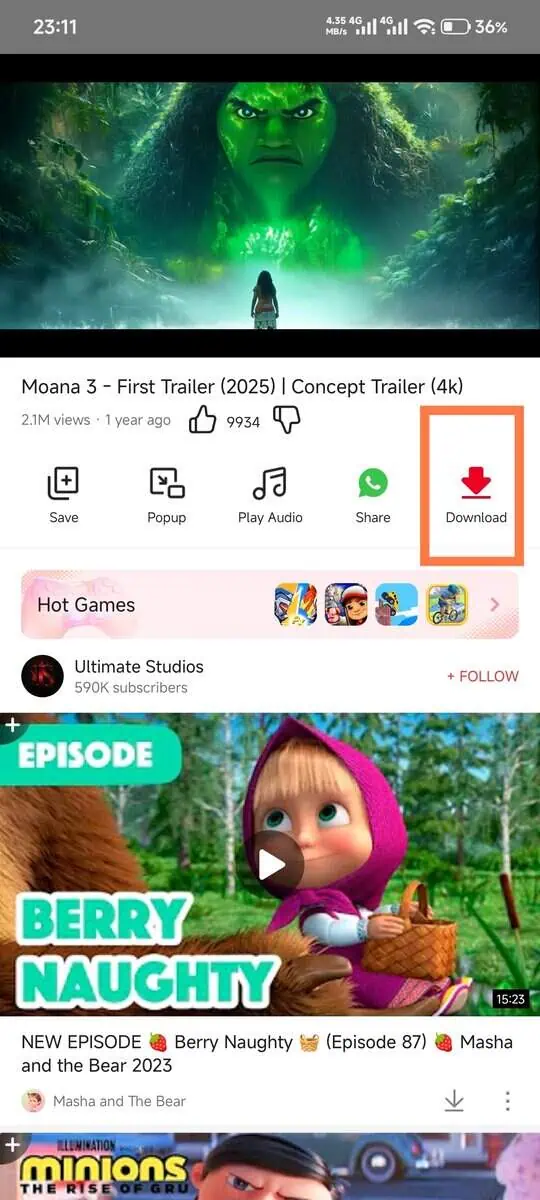
Tap the download icon. A pop-up window displays all available download options for that video. This includes different resolutions, formats, and file sizes. Each option shows the quality level and estimated file size.
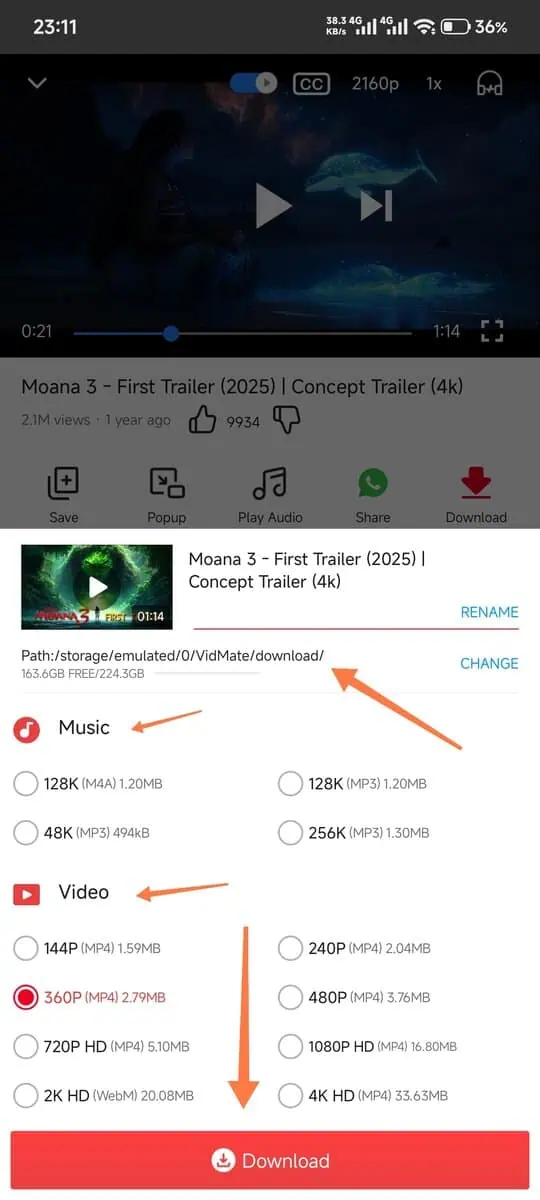
Select your preferred quality. For phone viewing, 720p or 1080p works perfectly. Choose 4K only if your device supports it and you have plenty of storage.
If you only need audio, look for MP3 or audio-only options. This saves significant storage space when you don't need visuals.
Tap the download button after making your selection. The download begins immediately. You'll see progress in the notification bar and within the app's download manager.
4. Customization and Optimization
Access the download manager to monitor all active and completed downloads. Open it from the bottom navigation menu. Here you can pause, resume, or cancel ongoing downloads. Rearrange download priority by dragging items in the queue.
Set download speed limits if you're on limited data. This prevents the app from consuming all your bandwidth. Navigate to Settings, then Downloads, and adjust the speed limit according to your needs.
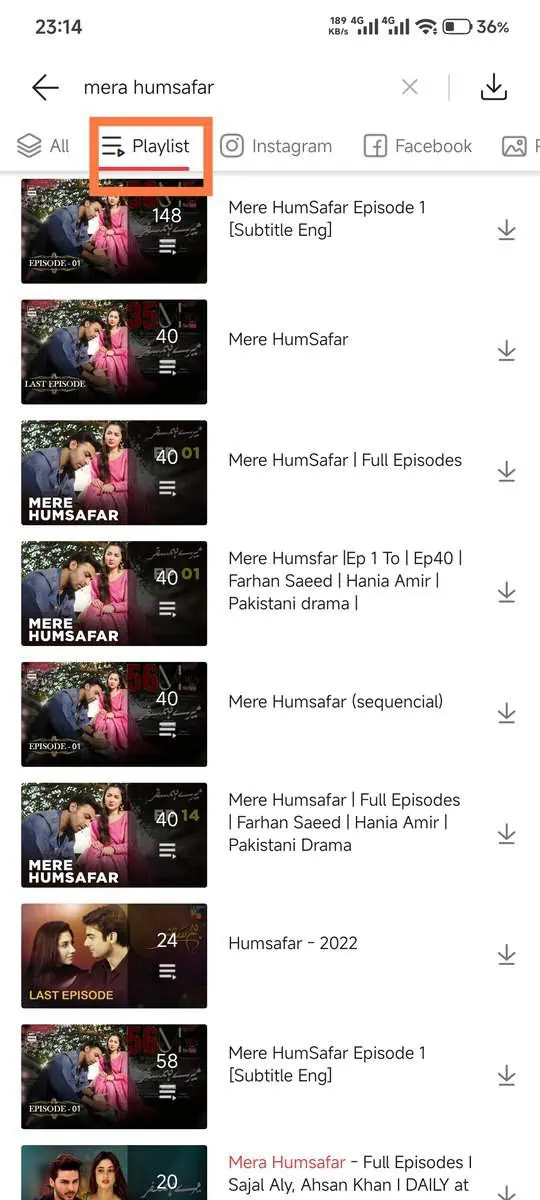
For batch downloads of playlists or channels, use the batch selection feature. When viewing a playlist, tap the batch download option. Select all videos you want or choose specific ones. Confirm and let VidMate handle the queue automatically.
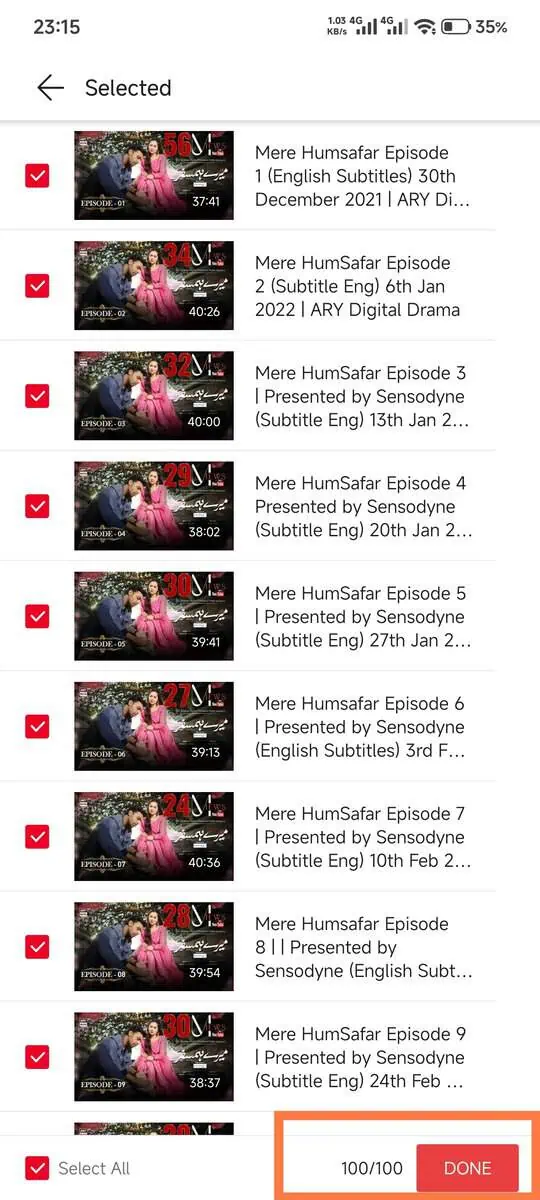
Finalizing and Managing Downloads
Once downloads complete, access them through the Downloads section in the app. Videos are organized by date, platform, or custom folders you create.
To find downloaded files in your device storage, navigate to the folder you set during initial setup. Usually, this is in Internal Storage or SD Card under a VidMate folder. From here, you can move files, rename them, or organize them into custom folders.
Quick Tips for Beginners and Advanced Users
-
Connect to WiFi before downloading large files. Mobile data works, but WiFi ensures faster speeds and prevents unexpected data charges.
-
Clear the app cache regularly to maintain optimal performance. Go to your device Settings, find VidMate under Apps, then tap Storage and Clear Cache. This doesn't delete your downloads, only temporary files.
-
Download videos during off-peak hours for maximum speed. Internet traffic is lighter late at night or early morning, resulting in faster downloads.
-
Create custom folders to organize content by type. Separate movies, music, tutorials, and other categories for quick access later.
-
Bookmark your favorite channels or sources within the app. This provides quick access without searching each time.
Common Mistakes to Avoid
-
Downloading without checking storage space leads to incomplete files. Always verify available storage before starting large downloads. The app may not warn you until space runs out mid-download.
-
Ignoring app permissions causes functionality issues. Grant necessary permissions when prompted, particularly storage access. Without proper permissions, the app cannot save files to your device.
-
Using unreliable sources for APK downloads risks malware installation. Only download VidMate from official websites or Fileion. Verify the file before installation using antivirus software.
-
Downloading copyrighted content without permission violates laws in many regions. Use VidMate responsibly by downloading only content you have rights to access or content explicitly marked for download.
-
Not organizing downloads creates cluttered storage. Establish a filing system from the start. Use descriptive filenames and folders to locate content quickly later.
Pricing and Availability
VidMate is completely free to use. There are no subscription fees, premium tiers, or in-app purchases required for full functionality. All features, including HD downloads, batch processing, and live TV streaming, are available at no cost.
The app generates revenue through minimal advertisements. These ads appear within the interface but don't interrupt downloads or playback. Users report fewer ads compared to similar applications.
It works on phones, tablets, and some Android TV boxes. The app is not available for iOS devices due to Apple App Store policies that prohibit video downloading applications.
Final Verdict
VidMate delivers a powerful, user-friendly solution for downloading videos and music from countless online sources. Its combination of high-speed downloads, format flexibility, and zero-cost access makes it a top choice for Android users who want offline content.
Ready to take control of your video content? Download VidMate today and start building your offline library. Visit Fileion, install the app, and enjoy unlimited access to your favorite videos anytime, anywhere.
FAQs
Is VidMate safe to download and use on my Android device?
VidMate is safe when downloaded from official sources. The app has been verified by multiple antivirus engines and used by millions worldwide. Always download from the official VidMate website or trusted APK platforms like Uptodown. Avoid third-party sites that may bundle malware with the APK file. Enable your device's security features and keep antivirus software updated for additional protection.
Can I download YouTube videos in 4K quality using VidMate?
Yes, VidMate supports 4K video downloads when the source platform offers that resolution. YouTube videos available in 4K can be downloaded at that quality level. However, the availability of 4K depends on the original upload quality. If a video was uploaded in 1080p or lower, VidMate cannot create higher resolution versions. Check the available quality options in the download pop-up before selecting your preference.
Why is VidMate not available on the Google Play Store?
Google Play Store policies prohibit applications that enable video downloading from platforms like YouTube. This policy applies to all video downloaders, not just VidMate. As a result, you must download the APK file directly from the official website or trusted third-party APK repositories. This is standard practice for video downloader applications and does not indicate any security issue with the app itself.
Does VidMate work on iPhone or iPad devices?
No, VidMate is not available for iOS devices. Apple's App Store has strict policies that prevent video downloading applications from being listed. The iOS operating system also restricts the installation of apps from outside the App Store, making sideloading difficult for average users. VidMate is exclusively designed for Android devices. iPhone and iPad users should explore alternative browser-based solutions or iOS-compatible apps that comply with Apple's guidelines.
How much storage space do I need for VidMate and downloaded videos?
The VidMate app itself requires approximately 20~30 MB of storage space. Downloaded videos vary significantly based on length, quality, and format. A 10-minute video in 720p resolution typically uses 100-200 MB. The same video in 1080p might require 300-500 MB. 4K videos consume substantially more, potentially 1-2 GB for 10 minutes. Audio files are much smaller, with a typical 3-minute MP3 song using 3-5 MB. Monitor your available storage and choose quality levels that balance viewing experience with space limitations.
Comments
Let us know about your thoughts
Explore more articles related to VidMate
Here you will find all the latest tips and tricks about VidMate . Also you will get many solution of problems which you may face while using this app.

Published at: Mar 08, 2026
5 Best VidMate Alternatives for Android
VidMate has been a popular choice for downloading videos from various platforms, but users increasingly...

Published at: Apr 16, 2026
Is VidMate Safe? 5 Critical Security Tips Before You Download
If you have ever searched for a way to download videos on Android, VidMate has probably...


Download Anything, Anytime
VidMate is your all-in-one Android app to instantly grab any video. Enjoy fast downloads, multiple formats, and offline fun right at your fingertips. It's your ultimate download powerhouse!