How to Install VidMate on Windows 11


Asif Mohammad Sovon
Asif Mohammad Sovon, IT Assistant at Bangladesh Air Force and Fileion tech writer, simplifies tech t...
You found a video you like. Maybe it is a tutorial, a music video, or a documentary. You want to save it for later. But there is no download button. Sound familiar?
That is exactly why millions of users turn to VidMate. It lets you download videos from hundreds of platforms directly to your device. No subscription. No fuss.
The only challenge? VidMate is built for Android. So if you are on a Windows 11 PC, you need a few extra steps to get it running. Nothing complicated, though.
In this guide, you will learn how to install VidMate on Windows 11 from scratch, even if you have never done anything like this before.
Let's dive into the basics before moving to the hands-on steps.
What is VidMate?
VidMate is a free video and media downloader application. It was originally developed for Android devices. It allows users to search, stream, and download videos from platforms like YouTube, Facebook, Instagram, Dailymotion, and many more.
Students use it to save educational content. Creators use it to reference other videos offline. Casual users download movies, shows, and clips for travel or areas with weak internet.
The key benefit is simple. You get your content, saved locally, ready to watch anytime.
Key Features
-
You can choose the quality of your download. Options range from low-resolution files for saving storage to full HD downloads for the best viewing experience.
-
VidMate has its own browsing interface. You can search for content directly inside the app without switching between browsers. It keeps the experience contained and fast.
-
The app uses a multi-thread download system. This means larger files download more quickly compared to standard single-thread downloaders.
Step-by-Step Guide: How to Install VidMate on Windows 11
Windows 11 does not support Android APK files natively without an emulator. You will use a free Android emulator to run VidMate on your PC.
-
Open your browser and go to Fileion to download the VidMate APK file. Save it somewhere easy to find, like your Desktop or Downloads folder.
-
Next, download a free Android emulator. BlueStacks is one of the most widely used and stable options available for Windows 11. Visit our website and download the installer.
-
Once the BlueStacks installer is downloaded, double-click the file to begin installation. Follow the on-screen prompts. The setup takes a few minutes, depending on your system.
-
After installation, open BlueStacks. The first launch may take a little longer as it loads the Android environment. Wait for it to fully start up before doing anything.
-
Sign in to a Google account inside BlueStacks when prompted. This is required for the emulator to function properly.
-
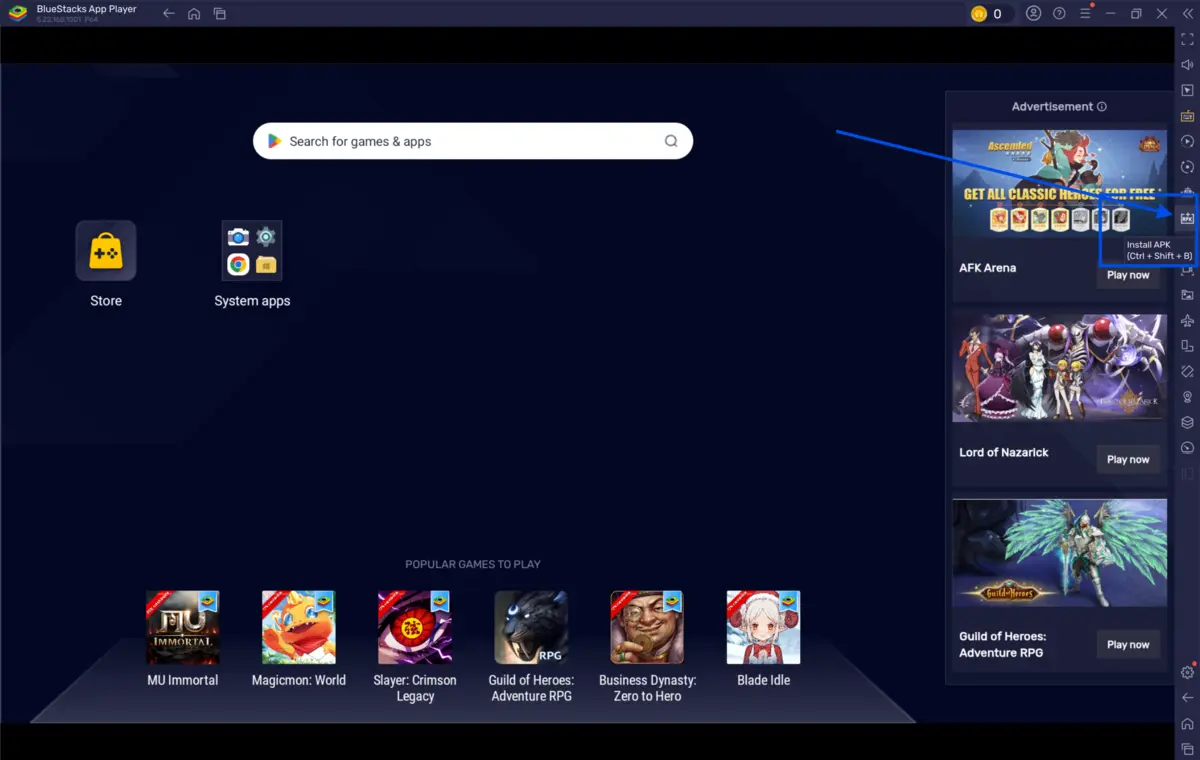
Once BlueStacks is running and signed in, look for the option to install an APK file manually. In BlueStacks, this is usually found under the sidebar or settings menu as "Install APK."
-
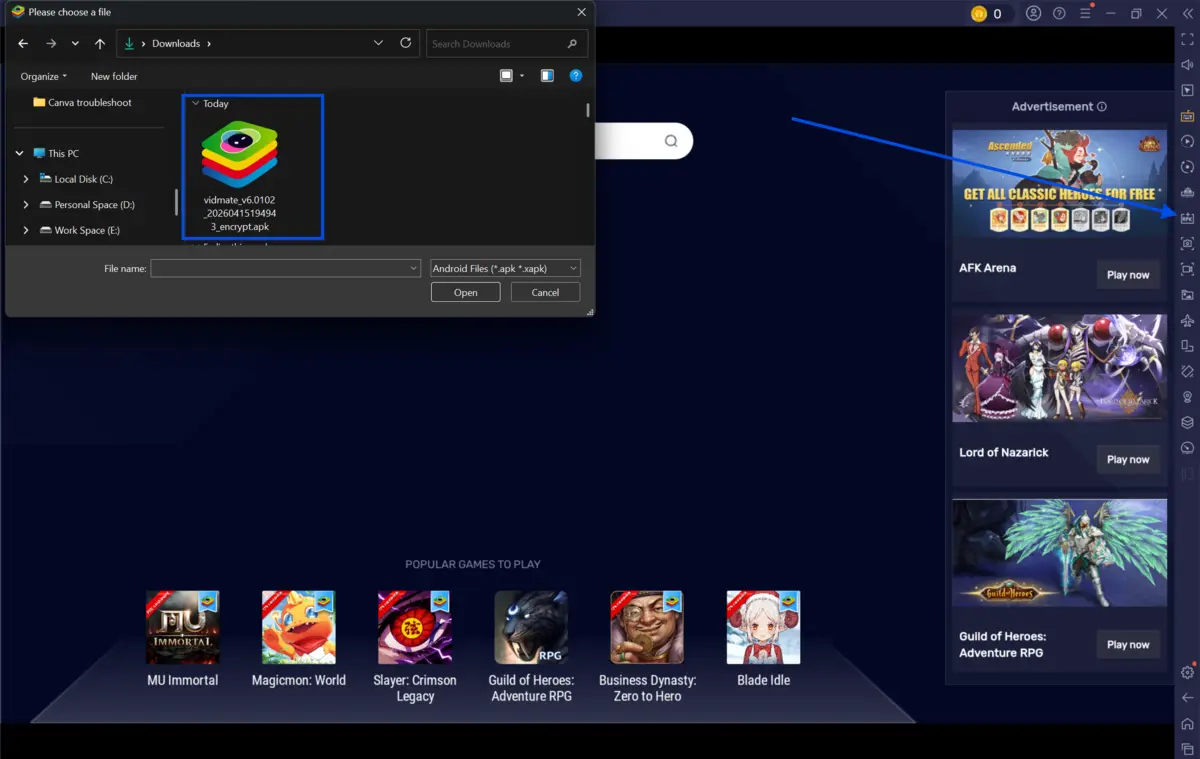
Click "Install APK" and navigate to the VidMate APK file you downloaded in Step 1. Select it and confirm.
-
BlueStacks will process and install the APK. This usually takes under a minute. You will see a confirmation message when it is done.
-
Go to the BlueStacks home screen or app drawer. Locate the VidMate icon. Click on it to open the application.
-
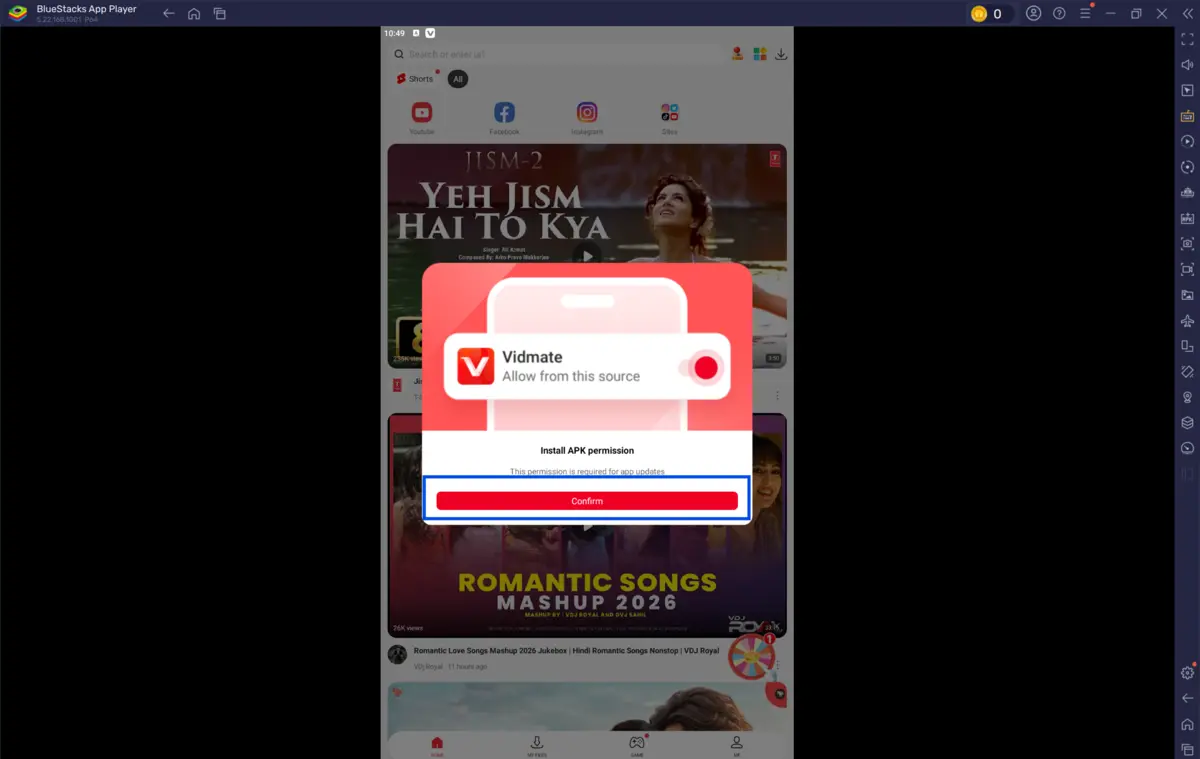
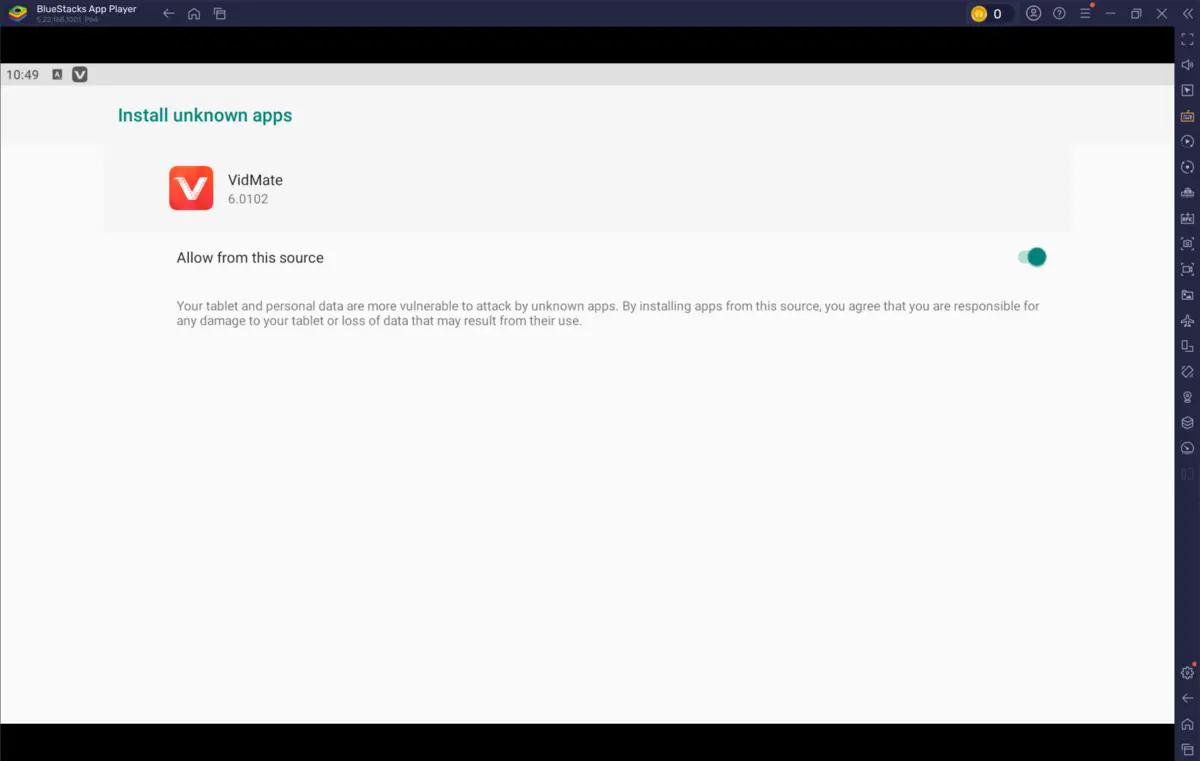
VidMate will launch inside the emulator window. Allow permissions it requests, such as access to storage. These are needed for downloads to work correctly.
-
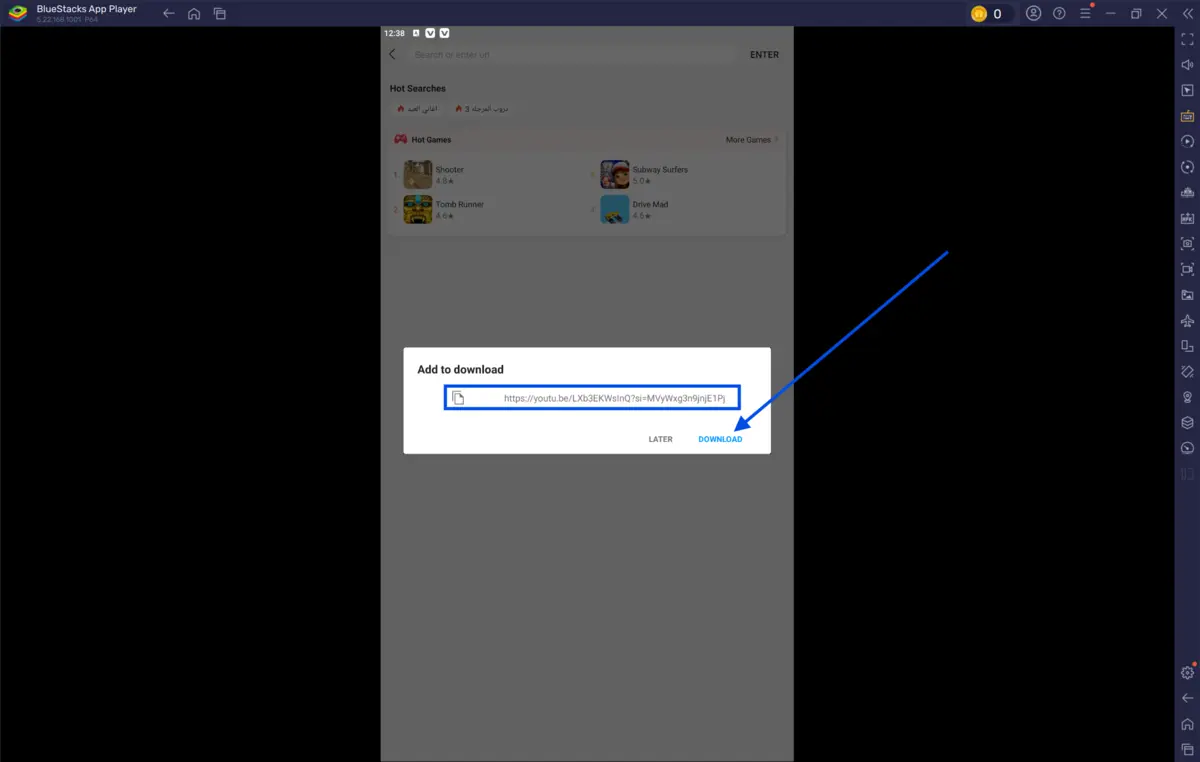
Use the built-in browser inside VidMate to search for a video or paste a URL. Once you find the content, tap the download button and choose your preferred format and resolution.
-
The file will download to a folder inside BlueStacks. To access your downloads on Windows, go to BlueStacks settings and find the shared folder or media manager to transfer files to your PC.
Quick Tips
-
Keep BlueStacks updated for the best performance and compatibility with newer APK versions.
-
Allocate more RAM to BlueStacks through its settings if you notice lag. 4GB is a good starting point.
-
Download videos in smaller batches if your PC is older or lower-spec.
-
Use a wired internet connection instead of Wi-Fi for faster and more stable downloads.
Common Mistakes to Avoid
-
Many websites host modified or outdated APK files. Always download from verified and trusted sources. Corrupted or tampered APKs can cause installation errors or security issues.
-
Some users skip signing into Google during the emulator setup. This can cause apps to crash or fail to install. Complete the sign-in before moving forward.
-
BlueStacks runs best when hardware virtualization is enabled in your BIOS settings. If BlueStacks is slow or fails to launch, check your BIOS and enable Intel VT-x or AMD-V, depending on your processor.
Pricing & Availability
VidMate is free to download and use. There is no paid subscription or premium tier required for basic downloading features. BlueStacks, the emulator used in this guide, is also free for personal use.
However, BlueStacks does offer a premium ad-free plan, BlueStacks Prime, which is priced at $4.99 per month. For downloading purposes, the free version of both tools is fully functional.
VidMate is available as an APK for Android and runs on Windows through an emulator as described in this guide. It is not available on official app stores like the Google Play Store or Microsoft Store.
Final Verdict
VidMate is a useful, no-cost solution for anyone who wants to save video content locally. It supports a wide range of platforms and gives you control over quality and format.
For Windows 11 users, the emulator route adds a couple of extra steps. But once it is set up, the experience is smooth and reliable.
Ready to get started? Download VidMate & Bluestacks directly from our site and follow this guide to have it run on your Windows 11 PC in minutes.
FAQs
Is VidMate safe to use on Windows 11?
VidMate itself is a legitimate application. The key is to download it only from verified sources. Using it through an emulator like BlueStacks adds an extra layer of separation from your core Windows environment. Always scan any APK file with your antivirus before installing.
Can I use VidMate without BlueStacks on Windows 11?
Yes. You can also use other Android emulators like NoxPlayer or LDPlayer as alternatives to BlueStacks. The steps are similar across most emulators. BlueStacks is recommended here due to its wide compatibility and regular updates.
Does VidMate work on YouTube on Windows 11?
VidMate supports video downloading from a large number of platforms. Functionality can vary based on the version of VidMate you are using and platform-specific restrictions. Always use the latest version for the best results.
Will VidMate slow down my PC?
BlueStacks is a resource-intensive application. On lower-spec machines, you may experience slowdowns. Allocating more RAM and CPU cores to BlueStacks in its settings can help. Closing unused background applications also frees up system resources.
How do I update VidMate to Windows 11?
To update VidMate, download the latest APK file from a trusted source and install it again through the "Install APK" option in BlueStacks. The newer version will replace the old one automatically without losing your settings.
Comments
Let us know about your thoughts
Explore more articles related to VidMate
Here you will find all the latest tips and tricks about VidMate . Also you will get many solution of problems which you may face while using this app.

Published at: Mar 08, 2026
5 Best VidMate Alternatives for Android
VidMate has been a popular choice for downloading videos from various platforms, but users increasingly...

Published at: Apr 16, 2026
Is VidMate Safe? 5 Critical Security Tips Before You Download
If you have ever searched for a way to download videos on Android, VidMate has probably...


Download Anything, Anytime
VidMate is your all-in-one Android app to instantly grab any video. Enjoy fast downloads, multiple formats, and offline fun right at your fingertips. It's your ultimate download powerhouse!